STM32WBA Web Bluetooth® App Interfaces
Two GitHub pages hosting the web app are available:
No installation is required to use the app this way.
Introduction
This is a web interface created with React 18 and Bootstrap 5.
This web interface uses Web Bluetooth® APIs to establish a Bluetooth® LE connection and exchange data with an STM32WBA board.
This application is compatible with the following projects from the STM32CubeWBA firmware:
| Application | NUCLEO-WBA55CG | NUCLEO-WBA65RI | NUCLEO-WBA25CE1 |
|---|---|---|---|
| Peer To Peer Server | Project | Project | Project |
| Peer To Peer Router | Project | Project | Project |
| HeartRate | Project | Project | Project |
| Firmware Update Over The Air | Project | Project | Project |
| Data Throughput | Project | Project | Project |
| Health Thermometer | Project | Project | Project |
| Electrocardiogram | - | Project | - |
| Pulse Oximeter | - | - | Project |
The following table lists additional STM32WBA applications available on STM32 Hotspot and supported by this Bluetooth® web application:
| Application | STM32 Hotspot link | Supported target |
|---|---|---|
| BLE OEMiROT FOTA | Link | STM32WBA65I-DK1 |
| Continuous Glucose Monitoring | Link | NUCLEO-WBA55CG |
| Blood Pressure | Link | NUCLEO-WBA55CG |
| Running Speed and Cadence | Link | NUCLEO-WBA55CG |
| Weight Scale | Link | NUCLEO-WBA55CG |
| AI Fan Control | Link | STM32WBA55G-DK1 |
| Solar Panel Demo | Coming soon | NUCLEO-WBA25CE1 |
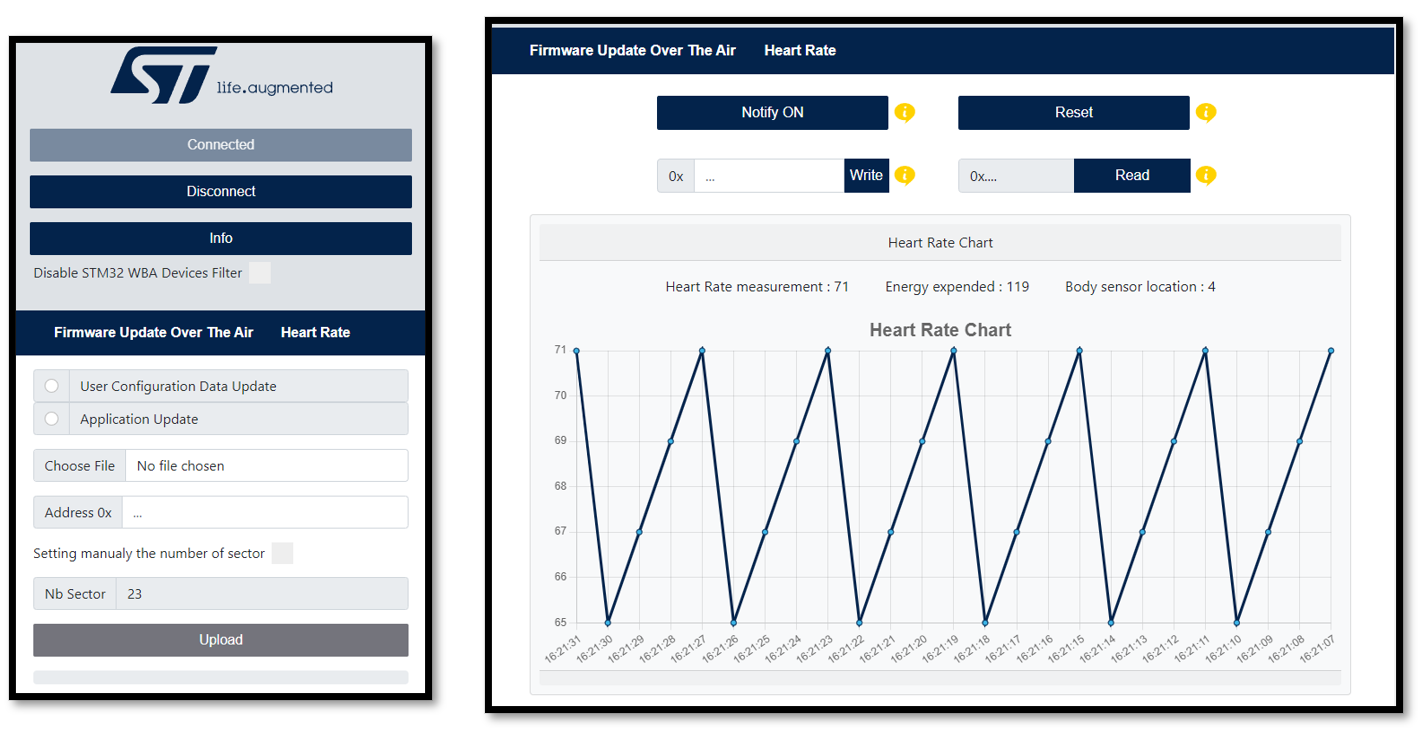
Example of the interface when connections are established to the Firmware Update Over The Air application and the HeartRate application:
Setup
Hardware requirements
To use the web interface, one of the following STM32WBA boards is necessary.
A PC or smartphone is required to open the web interface in a browser.
Web Bluetooth limitation: Web Bluetooth APIs are not available in all browsers or operating systems. Use a compatible browser (such as Chrome or Edge) and open the page in a secure context (HTTPS or localhost).
Software requirements
For more information about STM32CubeWBA Software Architecture, click here.
Refer to UM2237 to learn how to install and use STM32CubeProgrammer.
For more information about Bluetooth® LE, please refer to the STMicroelectronics Wiki.
User's guide
Peer To Peer Server
The P2P Server application demonstrates bidirectional Bluetooth® LE communication between a client and a server. The P2P Server interface proposes a set of buttons to interact with the connected device. A reboot panel is available only if a P2P Server service with the reboot OTA characteristic is detected on the device (see the Firmware Update Over The Air section for more information about OTA).
Requirements
Flash the project corresponding to your NUCLEO board using STM32CubeProgrammer.
| Supported NUCLEO board | BLE_p2pServer |
|---|---|
| NUCLEO-WBA55CG | Project |
| NUCLEO-WBA65RI | Project |
| NUCLEO-WBA25CE1 | Project |
Follow these steps to learn how to use the P2P Server application
Step 1. Power on the STM32WBA board with the P2P Server application flashed and activate Bluetooth® on your machine.
Step 2. Open this web page in your browser.
Step 3. Click the Connect button, select P2PS_WBAxx in the device list, and click Pair.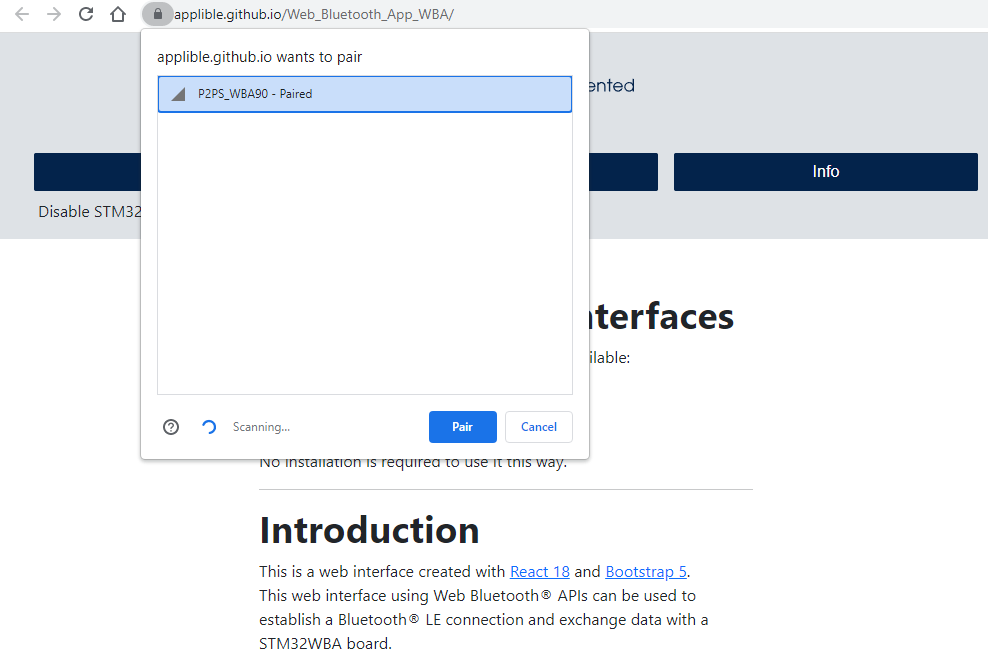
Step 4. Click P2P Server to show the interface and read the tooltips.
You are now connected.
You can now interact with the connected device.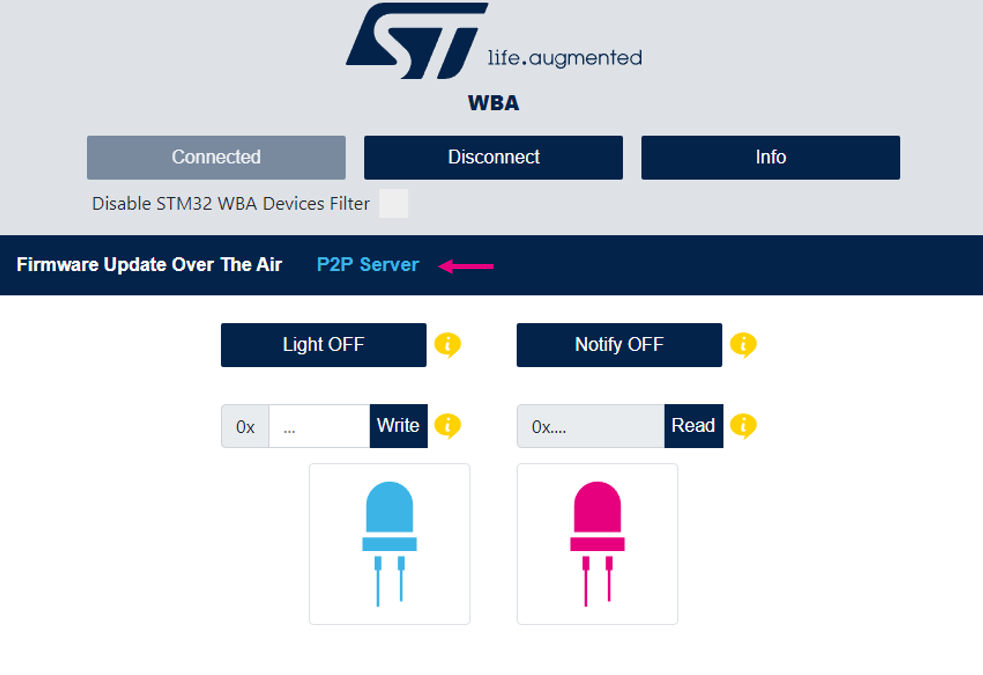
For more information about this application, please refer to STM32WBA P2P Server.
Firmware Update Over The Air (OTA)
The Firmware Update Over The Air (OTA) application allows a remote device to update the current application.
Requirements
Links to the projects associated with each NUCLEO board:
| Supported NUCLEO board | BLE_ApplicationInstallManager | BLE_p2pServer_ota | BLE_HeartRate_ota | BLE_GenericHealth_ECG_ota |
|---|---|---|---|---|
| NUCLEO-WBA55CG | Project | Project | Project | - |
| NUCLEO-WBA65RI | Project | Project | Project | Project |
| NUCLEO-WBA25CE1 | Project | Project | Project | - |
The BLE_ApplicationInstallManager application, associated with a Bluetooth® LE application embedding the OTA service, manages firmware updates over the air for a Bluetooth® LE application.
The BLE_ApplicationInstallManager application must run with Bluetooth® LE applications embedding the OTA service, such as BLE_HeartRate_ota, BLE_p2pServer_ota, or BLE_GenericHealth_ECG_ota.
BLE_ApplicationInstallManager is loaded at memory address 0x08000000. The OTA application is loaded at memory address 0x08006000.
Follow these steps to learn how to use the Firmware Update Over The Air application.
Step 1. Power on the STM32WBA board with the OTA application flashed and enable Bluetooth® on your machine.
Step 2. Open this web page in your browser.
Step 3. Click the Connect button, select your device from the list, and click Pair.
You are now connected.
Step 4. Choose between updating the User Configuration Data and the Application.
Step 5. Select the binary to be downloaded.
Step 6. (Optional) Choose the first sector address from which the file will be written.
Step 7. Click the Upload button and wait for disconnection.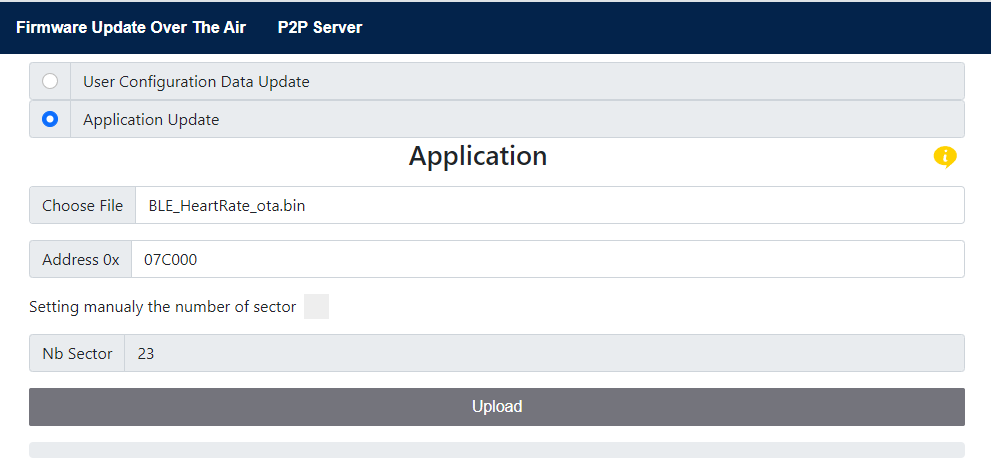
Congratulations, the new application/wireless stack is running and can be connected.
For more information about this application, please refer to STM32WBA FUOTA.
HeartRate
The HeartRate application measures heart rate data and other information, such as body sensor location and energy expended. The HeartRate interface proposes a set of buttons and text input to interact with the connected device, as well as a chart displaying the received heart rate data. A reboot panel is available only if a HeartRate service with the reboot OTA characteristic is detected on the device (see the Firmware Update Over The Air section for more information about OTA).
Requirements
Flash the project corresponding to your NUCLEO board using STM32CubeProgrammer.
| Supported NUCLEO board | BLE_HeartRate |
|---|---|
| NUCLEO-WBA55CG | Project |
| NUCLEO-WBA65RI | Project |
| NUCLEO-WBA25CE1 | Project |
Follow these steps to learn how to use the HeartRate application
Step 1. Power on the STM32WBA board with the HeartRate application flashed and activate Bluetooth® on your machine.
Step 2. Open this web page in your browser.
Step 3. Click the Connect button, select HRSTM in the device list, and click Pair.
You are now connected.
Step 4. Click HeartRate to show the interface and read the tooltips.
You can now interact with the connected device.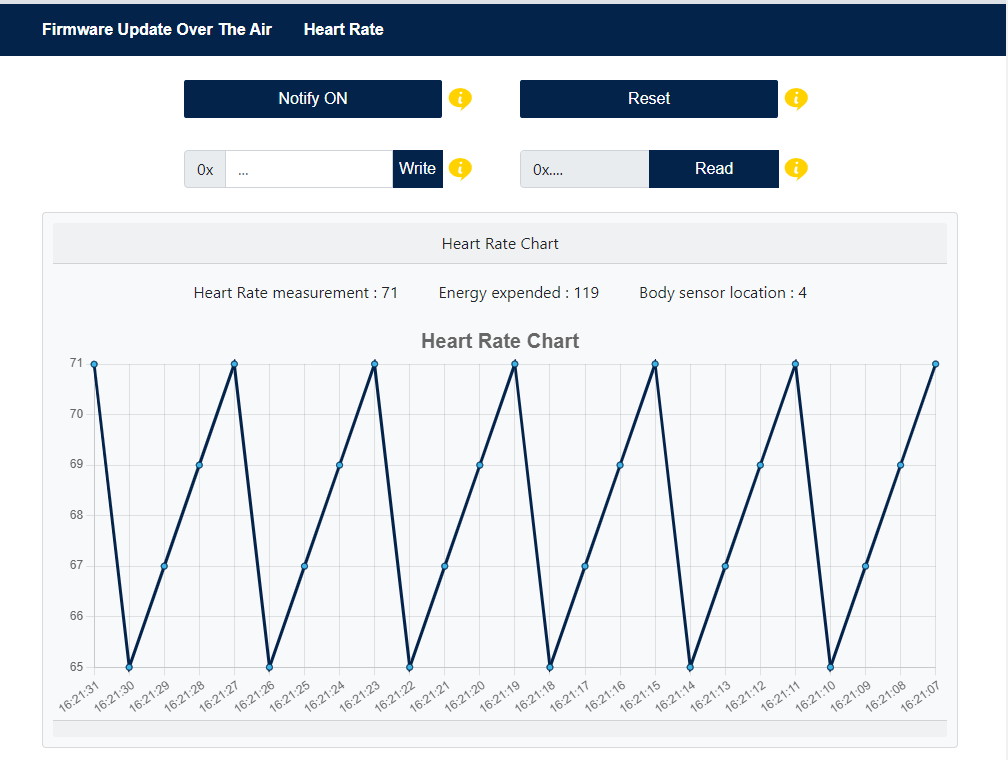
For more information about this application, please refer to STM32WBA Heart Rate.
Data Throughput
The Data Throughput application measures upload (data transfer from the web interface to the connected device) and download (data transfer from the connected device to the web interface) throughput between the web app and the connected device. The Data Throughput interface proposes two panels, one to display uploaded data and the other to display downloaded data. Each panel has a data throughput chart and a button to reset the chart, and the upload panel also has a button to start or stop data upload.
Requirements
Flash the project corresponding to your NUCLEO board using STM32CubeProgrammer.
| Supported NUCLEO board | BLE_DataThroughput_Server |
|---|---|
| NUCLEO-WBA55CG | Project |
| NUCLEO-WBA65RI | Project |
| NUCLEO-WBA25CE1 | Project |
Follow these steps to learn how to use the Data Throughput application
Step 1. Power on the STM32WBA board with the Data Throughput application flashed and activate Bluetooth® on your machine.
Step 2. Open this web page in your browser.
Step 3. Click the Connect button, select DT_SERVER in the device list, and click Pair.
You are now connected.
Step 4. Click Data Throughput to show the interface and read the tooltips.
You can now interact with the connected device.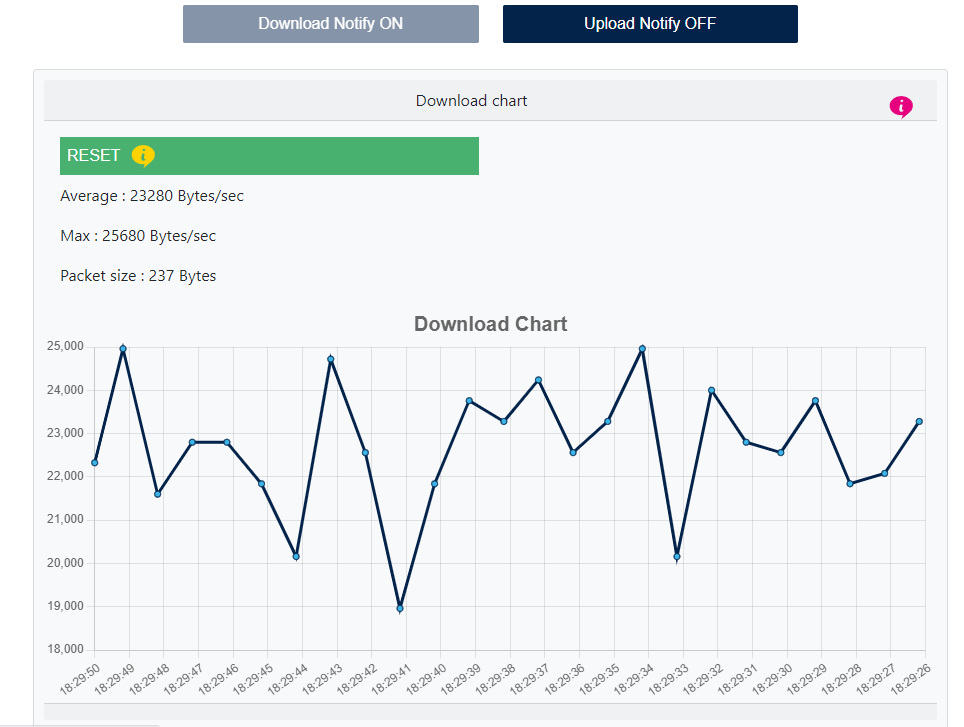
For more information about this application, please refer to STM32WBA Data Throughput.
Peer To Peer Router
The P2P Router application demonstrates STM32WBA acting at the same time as both: Bluetooth® LE central and peripheral, GATT server and client.
The P2P Router application scans to connect to P2P Server devices and accepts connections from the ST Web Bluetooth® app. It routes Bluetooth® LE messages received from both sides.
Requirements
Flash the project corresponding to your NUCLEO board using STM32CubeProgrammer.
| Supported NUCLEO board | BLE_p2pRouter |
|---|---|
| NUCLEO-WBA55CG | Project |
| NUCLEO-WBA65RI | Project |
| NUCLEO-WBA25CE1 | Project |
You also need at least one P2P Server running on another STM32WBA/STM32WB Nucleo board.
Follow these steps to learn how to use the P2P Router application
Step 1. Power the P2P Router board with the P2P Router application flashed and power the other boards with the P2P Server applications.
Step 2. Activate Bluetooth® on your machine.
Step 3. Open this web page in your browser.
Step 4. Click the Connect button, select P2PR_WBAxx in the device list, and click Pair.
You are now connected.
Step 5. Click P2P Router to show the interface and click the Start button.
You can now interact with the connected device.
Step 6. Power up to seven P2P Server devices near the P2P Router device.
Step 7. On each click of B1, the P2P Router will scan and then connect to a nearby P2P Server device.
Step 8. On the Web Bluetooth® interface, you can see devices appearing.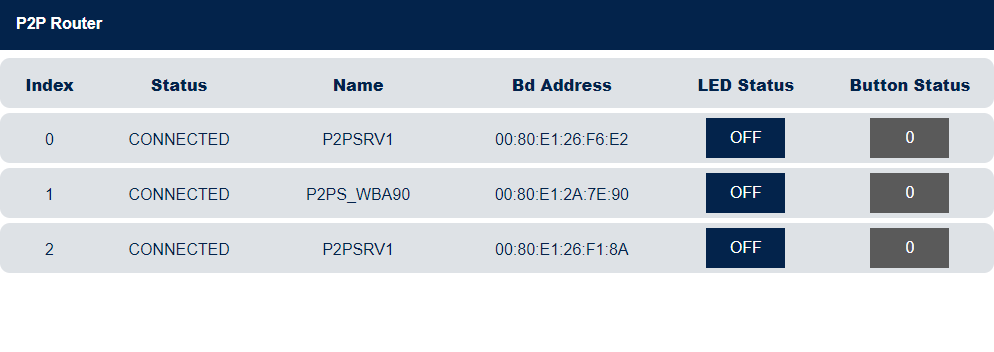
Step 9. On a P2P Server device, a click on B1 sends a notification to the P2P Router.
This notification message is forwarded to the smartphone and displayed on the interface.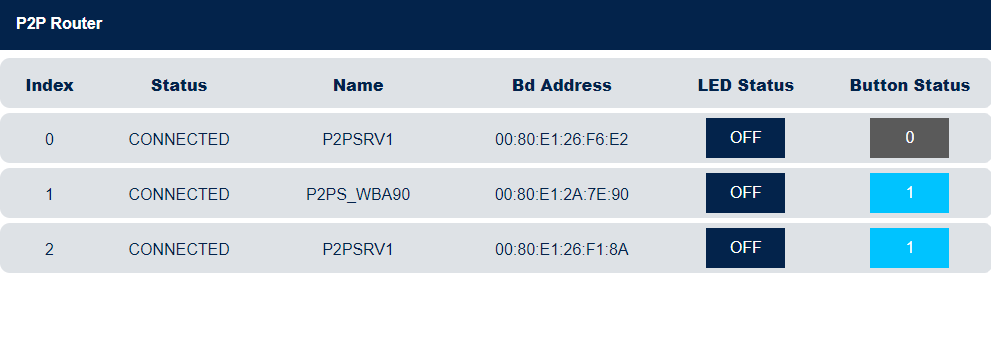
Step 10. On the Web Bluetooth® interface, click the Light button to write a message to the corresponding P2P Server device. This write message is first sent to the P2P Router and then routed to its destination.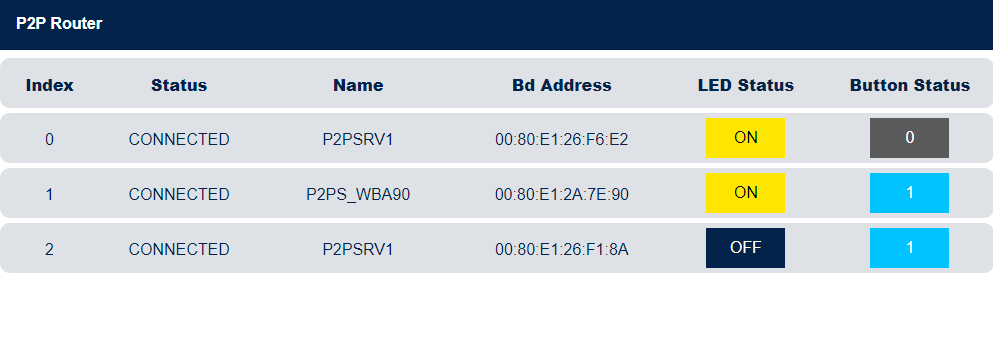
For more information about this application, please refer to STM32WBA P2P Router.
Health Thermometer
The Health Thermometer Profile is used to enable a data collection device to obtain data from a thermometer sensor that exposes the Health Thermometer Service.
This specification is compatible with any Bluetooth® core specification host [3] that includes the Generic Attribute Profile (GATT) specification and the Bluetooth® Low Energy Controller specification.
Requirements
Flash the project corresponding to your NUCLEO board using STM32CubeProgrammer.
| Supported NUCLEO board | BLE_HealthThermometer |
|---|---|
| NUCLEO-WBA55CG | Project |
| NUCLEO-WBA65RI | Project |
| NUCLEO-WBA25CE1 | Project |
Follow these steps to learn how to use the Health Thermometer application
Step 1. Power on the STM32WBA board with the Health Thermometer application flashed and activate Bluetooth® on your machine.
Step 2. Open this web page in your browser.
Step 3. Click the Connect button, select HT_xx in the device list, and click Pair.
You are now connected.
Step 4. Click Health Thermometer to show the interface.
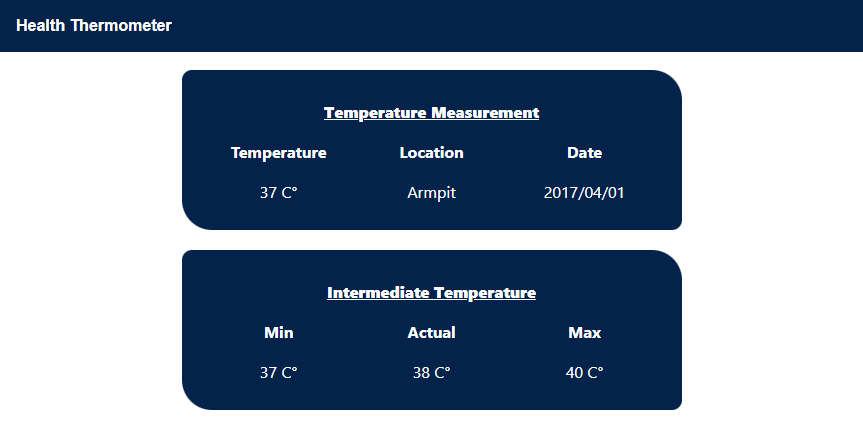
For more information about this application, please refer to STM32WBA Health Thermometer.
Troubleshooting
Caution: Issues and pull requests are not supported channels for submitting problems or suggestions related to the software delivered in this repository. This example is delivered as-is and is not necessarily supported by ST.
For any other questions related to the product, hardware performance or characteristics, tools, or environment, you can submit them to the ST Community on the STM32WBA MCU-related page.